
Excel Formulas for Beginners: Boost Your Spreadsheet Skills

Are you new to Microsoft Excel and looking to take your spreadsheet skills to the next level? Here is a helpful article with Excel Formulas for Beginners.
Excel formulas are the secret sauce that can turn a simple spreadsheet into a powerful tool for data analysis, automation, and decision-making. In this beginner’s guide, we’ll introduce you to some essential Excel formulas that will help you get started on your journey to becoming an Excel pro.
1. SUM Formula: Adding it Up
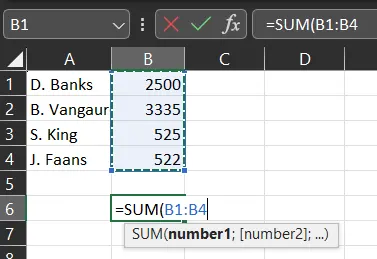
Let’s start with one of the most basic but essential formulas in Excel – the SUM formula. This formula allows you to add up a range of numbers effortlessly. To use it, simply type “=SUM(” in the cell where you want the result, then select the range of cells you want to add, and close the bracket. For example, “=SUM(A1:A5)” will add the values in cells A1 to A5.
2. AVERAGE Formula: Finding the Mean
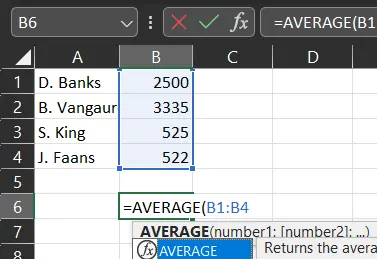
The AVERAGE formula calculates the average (mean) of a range of numbers. Similar to the SUM formula, you can use “=AVERAGE(” and select the range of cells you want to find the average of. For instance, “=AVERAGE(B1:B10)” will give you the average of the values in cells B1 to B10.
3. MAX and MIN Formulas: Finding Extremes
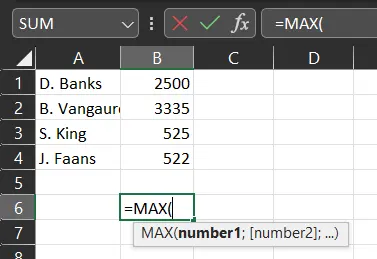
When dealing with large datasets, it’s often essential to find the highest (MAX) or lowest (MIN) value. To do this, use the MAX and MIN formulas. For example, “=MAX(C1:C100)” will return the maximum value from cells C1 to C100.
4. COUNT Formula: Counting Entries
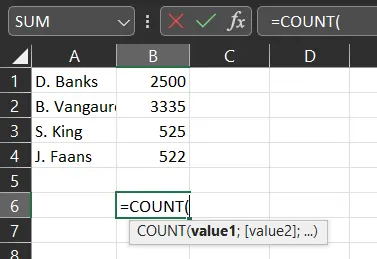
Sometimes you need to know how many entries are in a particular range. The COUNT formula can help you with that. Use “=COUNT(” and select the range of cells you want to count. It will return the number of cells containing numeric values.
5. IF Formula: Logical Decision Making
The IF formula is a powerful tool that allows you to perform logical tests and make decisions based on the results. The basic structure is “=IF(logical_test, value_if_true, value_if_false)”. For example, “=IF(D2>50, “Pass”, “Fail”)” will check if the value in cell D2 is greater than 50, and if it is, it will display “Pass,” otherwise “Fail.”
6. CONCATENATE Formula: Joining Text
If you want to combine text from different cells into a single cell, use the CONCATENATE formula. It’s simple: “=CONCATENATE(A1, ” “, B1)” will join the values of cells A1 and B1 with a space in between.
7. VLOOKUP Formula: Finding Data in Tables
The VLOOKUP formula is a lifesaver when you have large tables and need to find specific data. It looks for a value in the first column of a table and returns a corresponding value from another column. The syntax is “=VLOOKUP(lookup_value, table_array, col_index_num, [range_lookup])”. Mastering this formula can save you hours of manual search and data retrieval.
8. SUMIF Formula: Conditional Summing
With the SUMIF formula, you can add up values that meet specific criteria. For instance, “=SUMIF(C1:C100, “>50″)” will sum all the values in the range C1 to C100 that are greater than 50.
9. TODAY and NOW Formulas: Dates and Time
The TODAY formula gives you the current date, while the NOW formula provides the current date and time. For example, “=TODAY()” will display today’s date, and “=NOW()” will display both the date and time.
10. COUNTIF Formula: Conditional Counting
Similar to SUMIF, COUNTIF allows you to count the number of cells that meet specific criteria. “=COUNTIF(A1:A100, “Apple”)” will count how many times “Apple” appears in the range A1 to A100.
These ten Excel formulas are just the tip of the iceberg, but they will significantly boost your spreadsheet skills and open up a world of possibilities in data manipulation and analysis. As you become more comfortable with these formulas, you can explore more complex functions and combine them to perform even more advanced tasks in Excel.
Remember, practice is key to mastering Excel. Create sample datasets and experiment with these formulas to see how they work in different scenarios. The more you use Excel formulas, the more confident you’ll become in managing data and making informed decisions in your personal and professional life.
So, fire up Excel and start exploring the power of formulas today! Happy spreadsheeting!